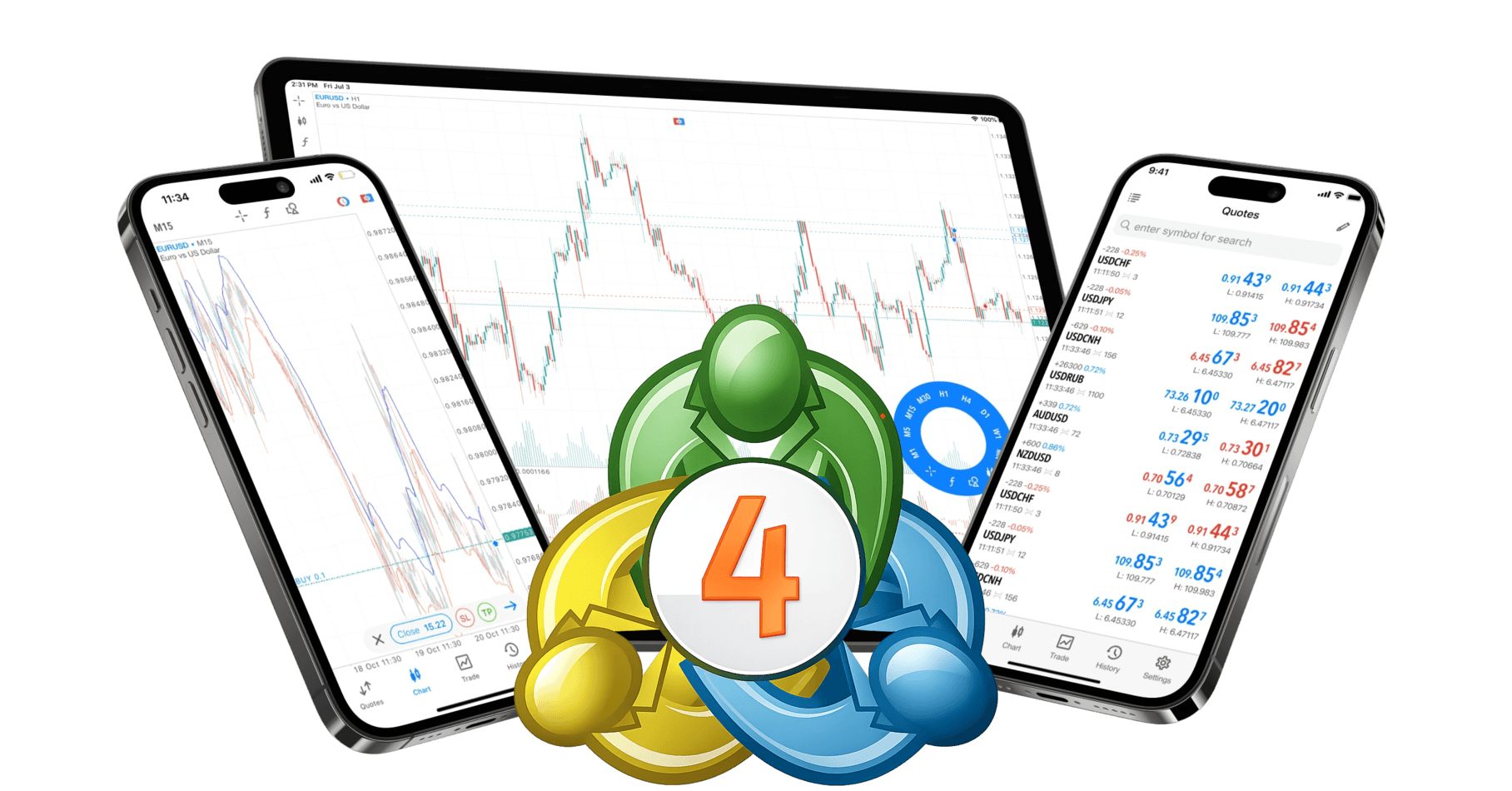
Trade with MetaTrader 4
CXM delivers advanced trading tools with powerful customization and reliable performance, making MT4 essential for every trader.
How to install MT4 Platform
CXM’s MT4 platform is easy to use, feature-rich, and supports fully automated trading.
Step 1: Download and run the setup file. A MetaTrader 4 Setup window will appear. Read the License Agreement, agree to it, and click "Next" to continue.
Step 2: The installation progress will be shown in a dialog window. Wait for the installation to complete.
Step 3: Once the installation is successfully completed, click the "Finish" button to launch the CXM MT4 trading platform.
Step 4: Following successful installation, MT4 will launch with its default parameters. You can use the login details sent to you via e-mail for logging into the MT4 platform.
Download MT4 Platform
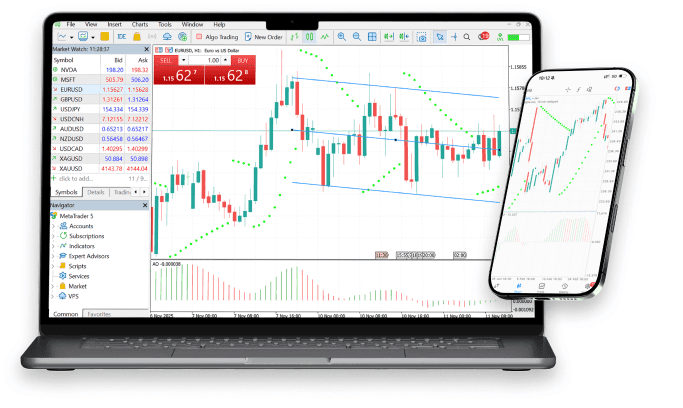
Download the MT4 platform on your desktop, laptop, or mobile device using the links below:
FAQs
Find answers to the most popular questions regarding trading with MetaTrader 4 platform.
The steps are as follows:
- On the top Menu bar, select INSERT > INDICATORS.
- You can also navigate to the Navigator section and insert chart indicators from there.
On the top Menu bar, select CHARTS > BAR CHART or use the keyboard short-cut (Alt+1).
- Yes you can trade mini lots (10K) using the MetaTrader platform.
- Here is the scale that we use for trading lot sizes on MetaTrader:
- 0.01 lots = 1,000 units of base currency (or dollars) — our "micro" lot size.
- 0.10 lots = 10,000 units of base currency (or dollars) — our "mini" lot size.
- 1.00 lots = 100,000 units of base currency (or dollars) — our "standard" lot size.
- Please note that trading in lot sizes not shown in the scale above is possible. An example would be a 0.60 lot position (60,000 units), an 8.00 lot position (800,000 units), and even a 3.20 lot position (320,000 units).
- Also note that other brokers may use a different scale to trade certain size lots. For instance, another broker may show 1.00 lots on a mini account as 10,000 units.
To add time periods to the main menu bar, select VIEW > TOOLBARS > PERIODICITY. (If needed) Use the following legend for applying time periods to charts:
- M1 = 1 minute chart
- M5 = 5 minute chart
- M15 = 15 minute chart
- M30 = 30 minute chart
- H1 = 1 hour chart
- H4 = 4 hour chart
- D1 = daily chart
- W1 = weekly chart
- MN = monthly chart
Within the Market Watch window, all of the currency pairs eligible to trade can be viewed by right-clicking within this section and selecting 'Show All'. All currency pairs will appear thereafter.